
User Interface
Navigation Bar
In Play mode, move your mouse to the bottom left corner of the page, you can see the navigation bar. 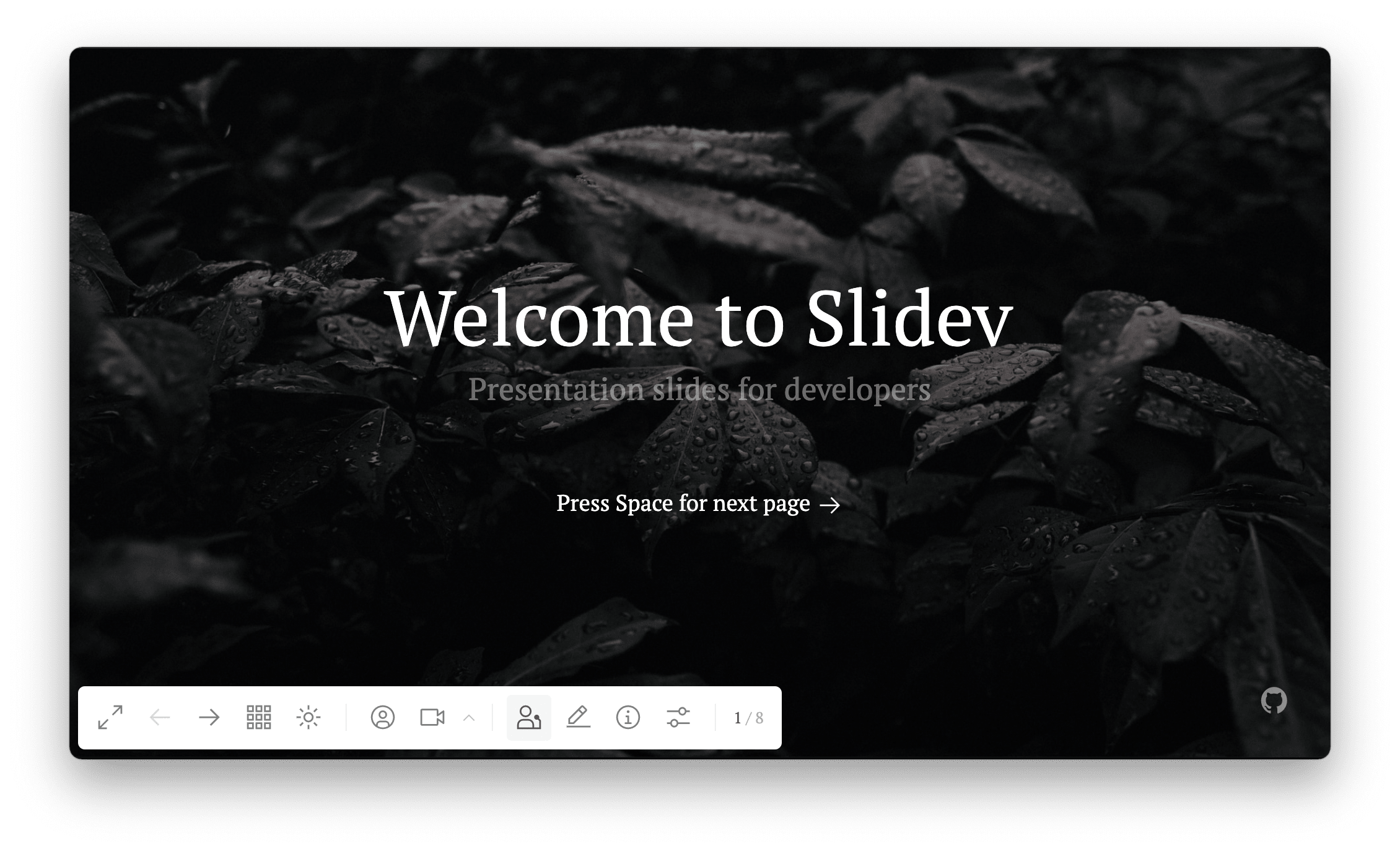
You can extend the navigation bar via ✨ Global Layers.
Navigation Actions
| Keyboard Shortcut | Button in Navigation Bar | Description |
|---|---|---|
| f | Toggle fullscreen | |
| right / space | Next animation or slide | |
| left | Previous animation or slide | |
| up | - | Previous slide |
| down | - | Next slide |
| o | Toggle Quick Overview | |
| d | Toggle dark mode | |
| - | Toggle Camera View | |
| - | Start ✨ Recording | |
| - | Enter Presenter Mode | |
| - | Toggle ✨ Integrated Editor | |
| - | Enter Browser Exporter | |
| - | Download PDF. See ✨ Generate PDF when Building | |
| - | Show information about the slides | |
| - | More options | |
| g | - | Show goto... |
You can configure the shortcuts.
Quick Overview
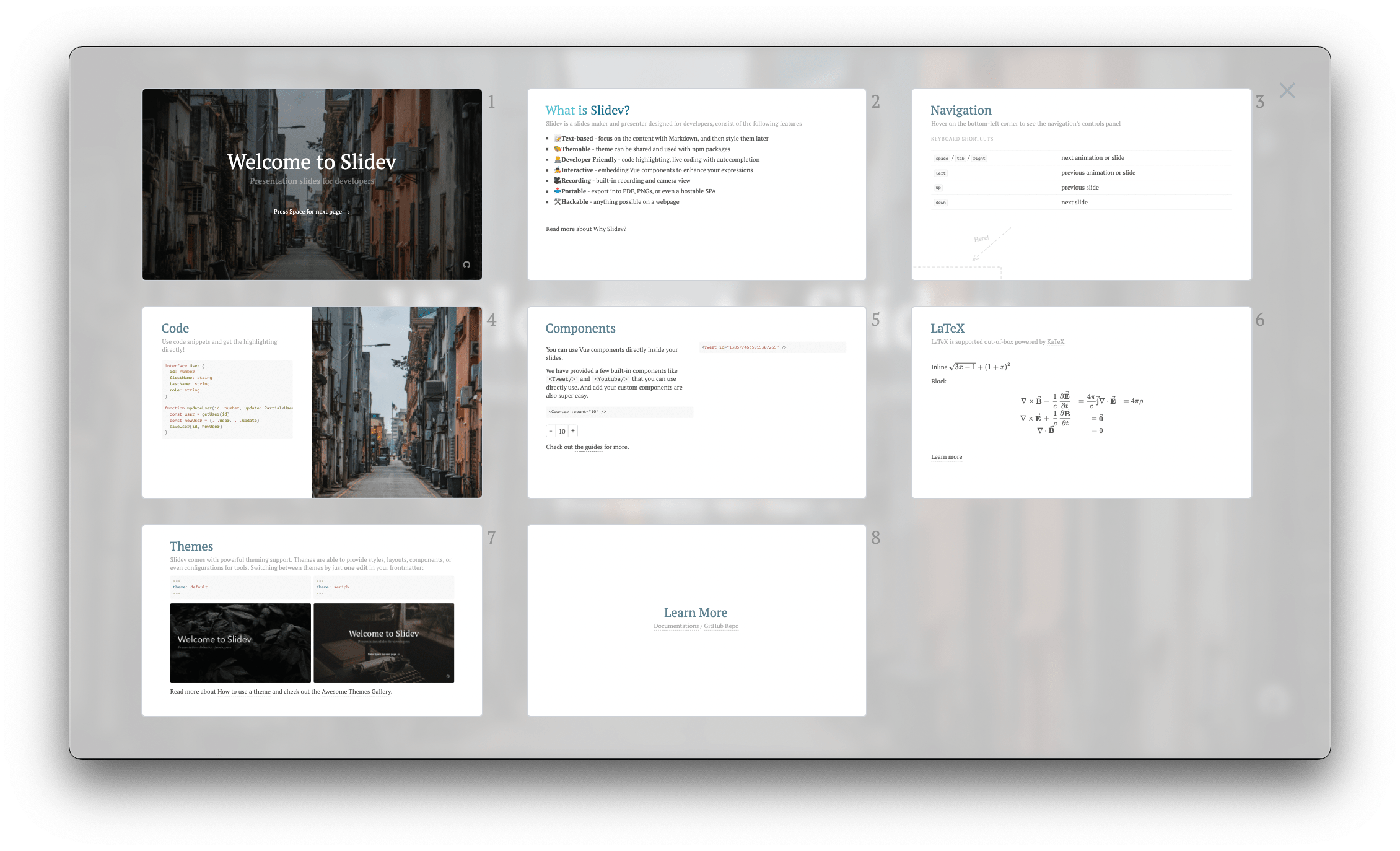
By pressing o or clicking the button in the navigation bar, you can have an overview of your slides so you can jump between them easily.
Presenter Mode
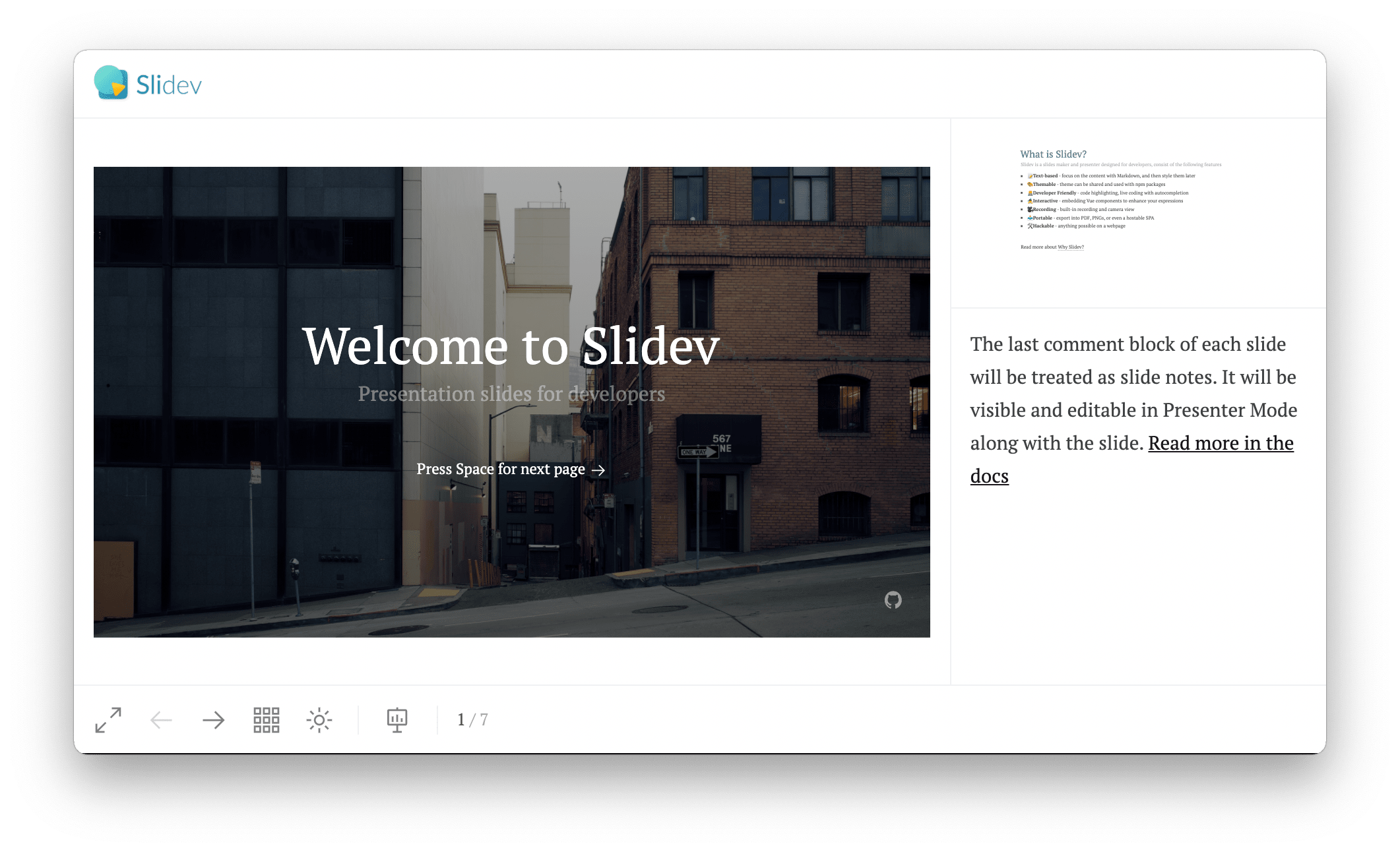
To enter the presenter mode, you can click the button in the navigation panel, or visit http://localhost:<port>/presenter.
When giving a presentation, it's recommended to open two browser windows - one in the play mode for the audience, and another one in the presenter mode for you. Then you can share the first screen to the audience and keep the second screen for yourself.
Whenever you navigate through the slides in the presenter mode, all other opened pages will automatically follow this navigation to stay in sync with the presenter.
Presenter Layouts
Available since v0.50.0
The presenter view offers three different layouts that you can cycle through by clicking the layout toggle button in the navigation bar:
- Layout 1 (default): Current slide prominently displayed at the top, with notes and next slide preview below
- Layout 2: Notes panel on the left, current slide and next slide stacked on the right
- Layout 3: Notes and current slide on the left, larger next slide preview on the right
Each layout is optimized for different screen sizes and presentation preferences.
Screen Mirror
Available since v0.50.0
Screen Mirror allows you to capture and display another monitor or window directly in the presenter view. This feature is useful for live coding demos, terminal output, or any situation where you need to see what's happening on another screen while presenting.
Use Cases
Live Coding Demos
When doing live coding presentations, you can mirror your code editor or terminal in the presenter view. This allows you to:
- See exactly what your audience sees on the projector
- Keep your presenter notes visible while coding
- Switch between slides and code without losing context
Terminal Output
If your presentation includes running commands or showing terminal output, Screen Mirror lets you:
- Display real-time command output in the presenter view
- Keep your notes and next slide preview visible
- Maintain a smooth presentation flow without switching windows
External Applications
Any application or window can be mirrored, including:
- Browser windows with web applications
- Database management tools
- API testing tools (like Postman)
- Design tools (like Figma)
How to Use
Step 1: Open Presenter Mode
- Start your Slidev presentation
- Open two browser windows:
- One for the audience (play mode):
http://localhost:3030 - One for you (presenter mode):
http://localhost:3030/presenter
- One for the audience (play mode):
Step 2: Enable Screen Mirror
- In the presenter view, look at the main slide area
- You'll see a segment control with options like "Slide" and "Screen Mirror"
- Click "Screen Mirror" to enable it
Step 3: Select Screen or Window
- A dialog will appear asking you to select a screen or window
- Choose the screen or window you want to mirror
- The selected content will appear in the presenter view
Step 4: Present
- Share the audience view (play mode) with your audience
- Use the presenter view with Screen Mirror to see:
- Your mirrored screen/window
- Your presenter notes
- Next slide preview
- Timer and other tools
Important Notes
Screen Mirror Only Shows in Presenter View
Screen Mirror content only appears in the presenter view, not in the audience view. This is by design because:
- Purpose: Screen Mirror is meant to help the presenter see what's happening on another screen, not to replace the presentation content
- Audience Experience: The audience should see your slides, not your mirrored screen
- Use Case: It's for monitoring purposes (e.g., seeing your terminal while presenting)
If You Want to Show Screen Content to Audience
If you need to show screen content to your audience, you have several options:
Option 1: Use Slidev's Built-in Features
- Code Blocks: Use Slidev's code block feature to show code snippets
- Monaco Editor: Use the Monaco Editor feature for interactive code demos
- Import Snippets: Import code from files directly into your slides
Option 2: Use Your Operating System's Screen Sharing
- Share your entire screen or specific window using your OS screen sharing
- This will show the content to your audience
- Use Slidev's presenter mode for your notes and controls
Option 3: Use a Separate Application
- Open the application you want to show in a separate window
- Share that window with your audience
- Use Slidev's presenter mode for your notes
Configuration
Frontmatter Configuration
You can configure Screen Mirror behavior in your slide's frontmatter:
---
# Enable Screen Mirror by default
screenMirror: true

# Or configure specific options
screenMirror:
  enabled: true
  autoSelect: 'screen' # or 'window'
---
Keyboard Shortcuts
| Shortcut | Action |
|---|---|
| m | Toggle Screen Mirror mode |
| Escape | Exit Screen Mirror selection |
Troubleshooting
Screen Mirror Not Working
- Browser Permissions: Make sure your browser has permission to capture screens
- HTTPS Required: Screen capture may require HTTPS in some browsers
- Browser Support: Check if your browser supports the Screen Capture API
Poor Performance
- Reduce Resolution: Try capturing a smaller window or area
- Close Unnecessary Tabs: Free up browser resources
- Use Hardware Acceleration: Enable hardware acceleration in your browser
Content Not Showing in Presenter View
- Check Selection: Make sure you selected the correct screen/window
- Refresh: Try refreshing the presenter view
- Re-select: Click "Screen Mirror" again and re-select your screen
Best Practices
For Live Coding
- Use a Dedicated Monitor: If possible, use a separate monitor for your code
- Position Windows: Arrange your windows so you can see both Slidev and your code
- Practice Transitions: Get comfortable switching between slides and code
For Terminal Demos
- Use a Large Font: Make sure your terminal text is large enough to read
- Clear Terminal: Clear your terminal before starting the demo
- Prepare Commands: Have your commands ready to avoid typing during the presentation
For General Use
- Test Before Presenting: Always test Screen Mirror before your actual presentation
- Have a Backup: Prepare alternative ways to show your content if Screen Mirror fails
- Keep It Simple: Don't mirror too many things at once
Technical Details
How Screen Mirror Works
- Screen Capture API: Uses the browser's Screen Capture API (
getDisplayMedia) - Real-time Streaming: Captures and streams the screen content in real-time
- Presenter View Only: The stream is only displayed in the presenter view
- No Recording: Screen Mirror does not record your screen
Browser Support
| Browser | Support |
|---|---|
| Chrome | ✅ Full support |
| Edge | ✅ Full support |
| Firefox | ✅ Full support |
| Safari | ⚠️ Limited support |
Security Considerations
- User Permission: Browser will ask for permission before capturing
- No Persistence: Screen capture is not saved or recorded
- Local Only: Capture is local to your browser
Examples
Example 1: Live Coding Presentation
---
theme: default
title: Live Coding Demo
---

# Live Coding Demo

We'll build a React component together!

---
layout: center
---

## Let's Code!

Open your editor and follow along.
Presenter Setup:
- Open presenter mode
- Enable Screen Mirror
- Select your code editor
- Present your slides while seeing your code in the presenter view
Example 2: Terminal Demo
---
theme: default
title: CLI Tools Demo
---

# CLI Tools Demo

Let's explore some useful CLI tools!

---
layout: center
---

## Try It Yourself!

Open your terminal and follow along.
Presenter Setup:
- Open presenter mode
- Enable Screen Mirror
- Select your terminal window
- Present your slides while seeing your terminal in the presenter view
Related Features
- Presenter Mode - Learn about presenter mode
- Presenter Layouts - Different presenter layouts
- Remote Access - Control presentations remotely
- Recording - Record your presentations
FAQ
Q: Can I show Screen Mirror content to my audience?
A: No, Screen Mirror is only for the presenter view. If you need to show screen content to your audience, use your operating system's screen sharing feature or Slidev's built-in code display features.
Q: Why doesn't Screen Mirror show in the audience view?
A: Screen Mirror is designed to help the presenter monitor another screen, not to replace presentation content. The audience should see your slides, not your mirrored screen.
Q: Can I mirror multiple screens at once?
A: No, you can only mirror one screen or window at a time. If you need to show multiple things, consider using Slidev's code blocks or switching between different mirrors during your presentation.
Q: Does Screen Mirror record my screen?
A: No, Screen Mirror only captures and displays your screen in real-time. It does not record or save any content.
Q: Can I use Screen Mirror with Zoom/Teams/etc?
A: Yes! You can use Screen Mirror in Slidev while also sharing your screen in video conferencing tools. Just make sure you're sharing the correct screen or window with your audience.
Tips and Tricks
Quick Switching
- Use keyboard shortcut m to quickly toggle Screen Mirror
- Practice switching between slides and mirrored content
Multiple Monitors
- If you have multiple monitors, you can dedicate one to your code
- Use Screen Mirror to see that monitor in your presenter view
Performance Optimization
- Close unnecessary browser tabs and applications
- Use a wired internet connection if possible
- Reduce the resolution of the mirrored content if needed
Presentation Flow
- Start with slides: Begin your presentation with slides
- Switch to code: When ready, switch to Screen Mirror for live coding
- Switch back: Return to slides for explanations and conclusions
- Use notes: Keep your presenter notes visible throughout
Conclusion
Screen Mirror is a powerful feature for presenters who need to monitor another screen while presenting. It's designed to help you see what's happening on another screen without interrupting your presentation flow.
Remember: Screen Mirror is for the presenter only. If you need to show screen content to your audience, use your operating system's screen sharing or Slidev's built-in features.
For more information, see the Presenter Mode documentation.
Slide Overview
Available since v0.48.0
You can visit an overview of all of your slides by first opening the Quick Overview panel and then clicking the on the top right, or by visiting http://localhost:<port>/overview directly.
The overview page gives you a linear list of all your slides, with all of your notes on the side. You can double-click on the notes to edit the notes directly, and drag the clicks sliders to preview the steps in your slides.
Notes Editor
Available since v0.52.0
Slidev provides a batch notes editor at http://localhost:<port>/notes-edit where you can edit notes for all slides in a single text area.
Notes for each slide are separated by --- #[slide-number] markers. Changes are automatically saved as you type with debouncing.
This is useful when you want to write or review all your speaker notes in one place without switching between slides.
Drawing UI
See:
Recording UI
See:
Browser Exporter
See:
Settings
Click the button in the navigation bar to access additional settings.
CSS Filters
Available since v0.50.0
When presenting on different projectors or displays, colors may appear differently than expected. Slidev provides CSS filter controls to adjust the display in real-time:
- Invert: Flip all colors
- Brightness: Adjust overall brightness (0.5 - 1.5)
- Contrast: Adjust contrast levels (0.5 - 1.5)
- Saturation: Adjust color saturation (0.5 - 1.5)
- Sepia: Add sepia tone effect
- Hue Rotate: Shift all colors by degrees (-180 to 180)
These settings are stored locally and persist across sessions. A dot indicator appears on the settings button when any filter is active.
Hide Idle Cursor
Available since v0.50.0
When enabled, the cursor will automatically hide after a period of inactivity during the presentation. This provides a cleaner viewing experience for your audience.
Slide Scale
Choose between "Fit" mode (scales slides to fit the viewport) or "1:1" mode (displays slides at their native resolution).
Wake Lock
When enabled, prevents the screen from dimming or locking during your presentation. Requires browser support for the Wake Lock API.
Global Layers
You can add any custom UI below or above your slides for the whole presentation or per-slide: